File types and sizes
What we accept, the ten-megabyte limit, and where to send something that does not belong to an application yet.
3 min read
What we accept
.pdf · .jpg · .jpeg · .png · .webp · .heic · .csv · .xlsx
Up to 10 MB per file. As many files as you like.
The one exception is bank statements, which have to be PDFs downloaded from your bank. Everywhere else, a photograph of a document is perfectly acceptable.
The browser only offers you the kinds of file we take, and both the app and our server check the size and the type before anything is stored — so a file that was never going to be accepted is refused quickly rather than after you have watched a progress bar.
If a file is too big
- Send the pages as separate files. Six months of statements are six files from the bank anyway.
- Photograph a document rather than scanning it at 600 dpi. A phone photo of a certificate is usually under 3 MB and perfectly readable.
- On a Mac, Preview → File → Export → Reduce File Size will usually take a scanned PDF well under the limit.
Sending something that is not attached to an application
You do not need an open application to send us a document. "Here is my paperwork, what can I get" is a normal way to start with a broker, and a documents screen that insists on a form first is a closed door. Anything sent that way belongs to your business, and the people working with you can see it against whatever you open next.
On the web
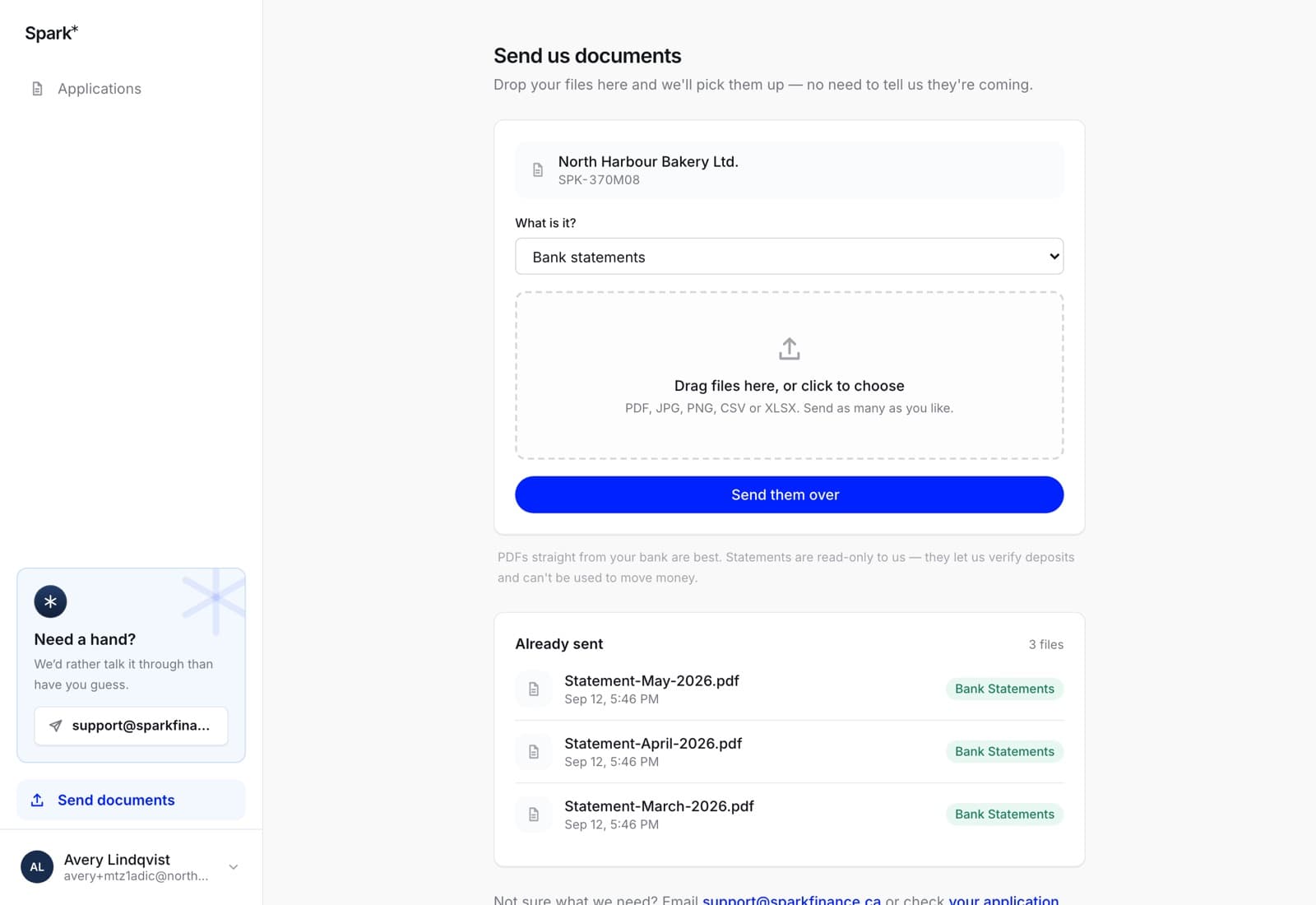
Send documents in the sidebar. It files what you send against your most relevant open application and names it at the top of the box, so there is nothing to choose — and it offers three labels: bank statements, incorporation documents, or something else.
In the app
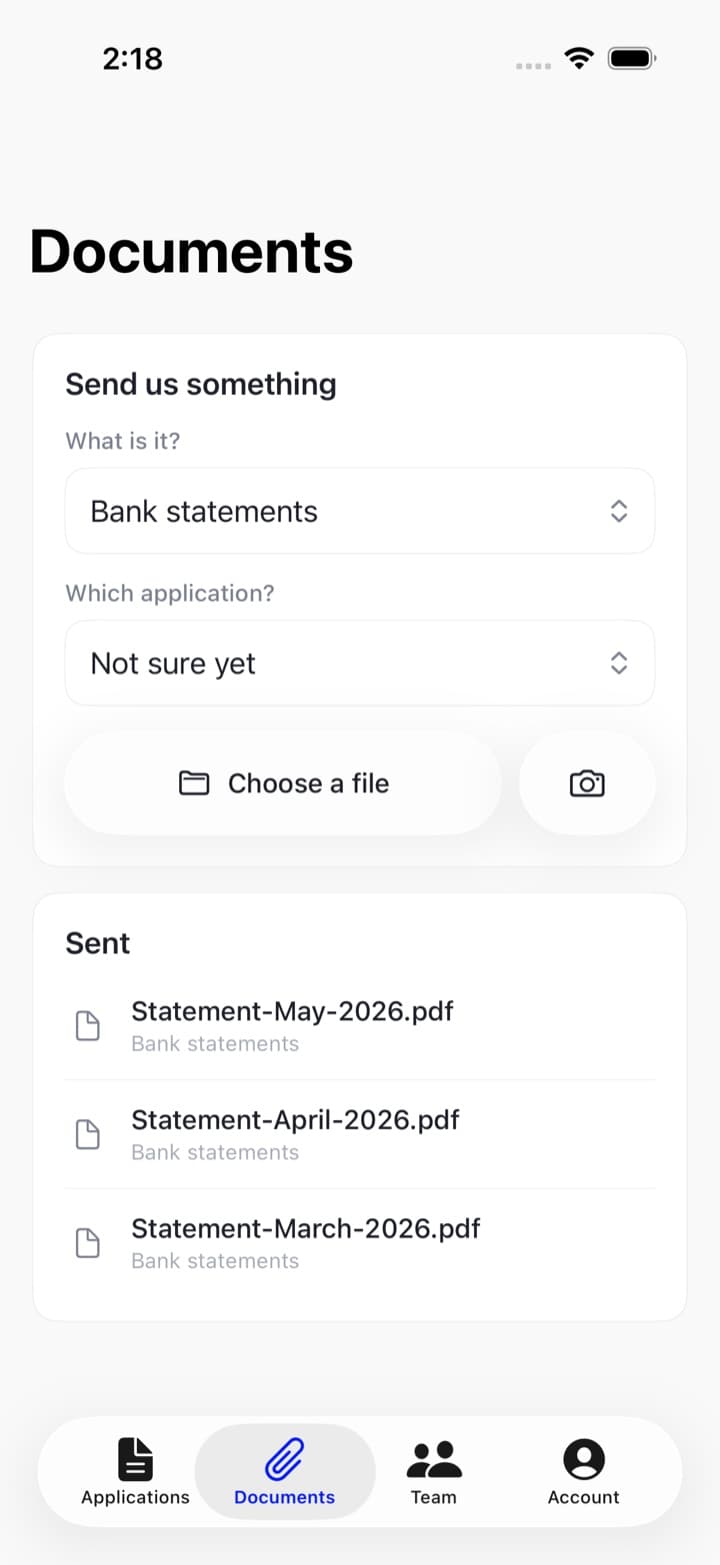
The Documents tab does one thing the website does not: it asks which application the file belongs to, and takes Not sure yet for an answer. It also offers the full list of labels rather than three.
Two ways in: Choose a file opens Files and iCloud Drive, and the button beside it opens your photo library. There is no camera inside Spark — photograph the document in the Camera app first, then pick it here.
HEIC — what an iPhone photo is by default — is on the accepted list, so there is no need to convert anything before sending it.
If you have sent the wrong thing, see if you sent the wrong document.