Bank statements
Six months, from the bank, every account the business uses — the four rules, how to get them out of your bank on a phone, and what gets a file sent back.
5 min read
This is the one document nothing happens without. An underwriter reads the statements; everything else on the application is context around them.
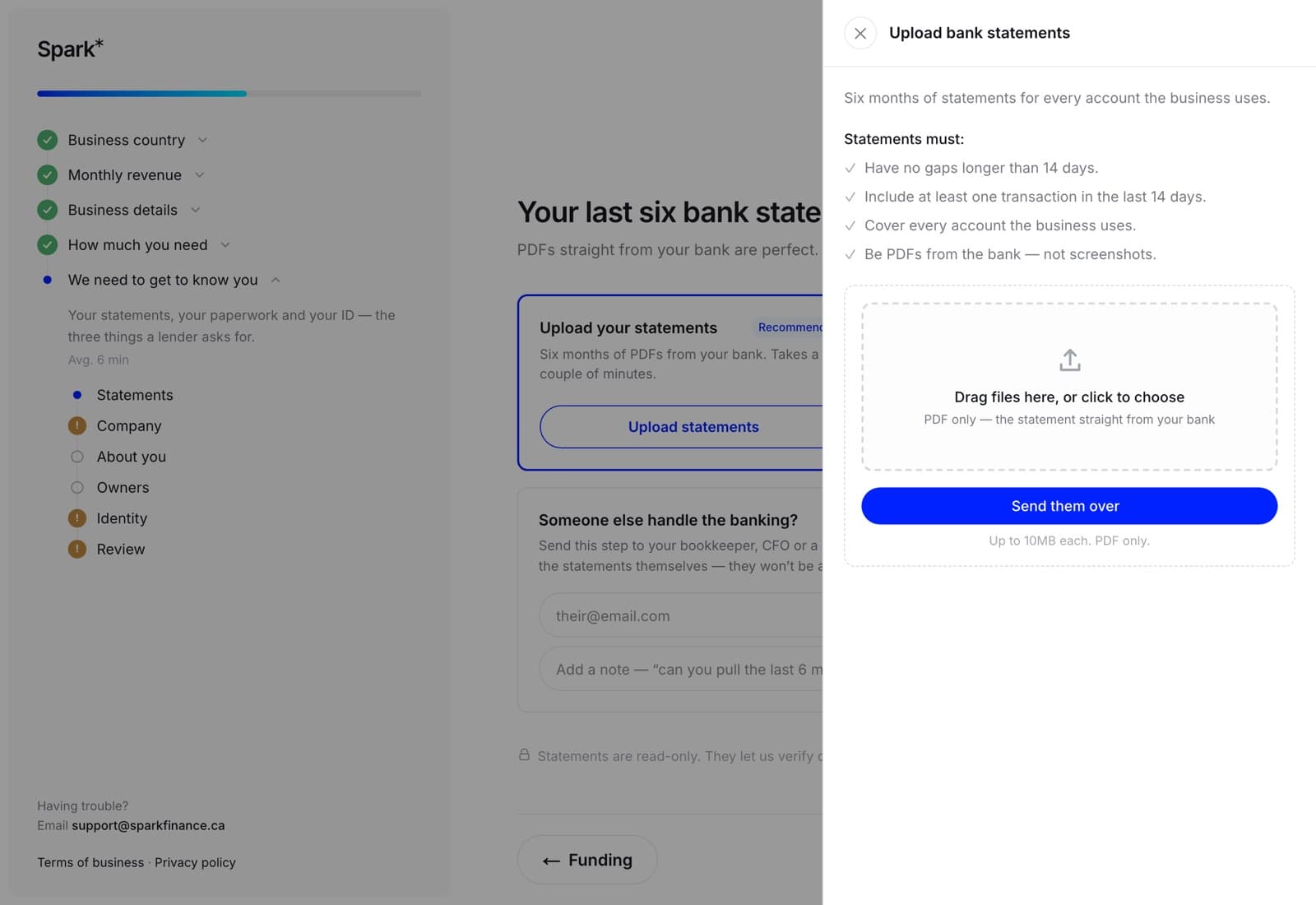
The four rules
The upload panel states them, and they are worth reading before you start downloading. Your statements have to:
- Cover the last six months. Ending with the most recent full statement your bank has produced.
- Have no gaps longer than 14 days. A missing month, or a period the bank did not produce a statement for, has to be explained or filled.
- Include at least one transaction in the last 14 days. A file whose most recent activity is three weeks old reads as a business that has stopped trading. This is the rule that most often sends a file back, and it is the reason a statement you downloaded a month ago is not good enough today.
- Cover every account the business uses. Not just the busiest one. If the deposits land in one account and the bills leave another, send both — a file where half the money is invisible reads as a business with half the revenue.
And they have to be the bank's own documents, not pictures of a banking app.
Why the bank's own PDF
A statement downloaded from the bank carries the bank's formatting, the account and the period, and every line in order. A screenshot of a banking app, or a spreadsheet you exported yourself, is a different artefact: it cannot be checked, and an underwriter will ask for the real one — so sending it costs you a day rather than saving you five minutes.
The web upload box asks for PDFs on the statements step for that reason. In the app you can also send a photograph of a paper statement the bank posted you, which is a real document; a photograph of a screen is not.
Getting them out of your bank
On a computer. Sign in to business banking, find Statements or Documents (usually under the account rather than under Settings), and download each month as a PDF. Most banks produce one file per month per account — so six months of one account is six files, and that is normal.
On a phone. Open your bank's app, find the statement, and use its share or download action to save it into Files (iCloud Drive or On My iPhone are both fine). Then come back to Spark and pick it up from there. Do not screenshot the screen — see above.
On the web
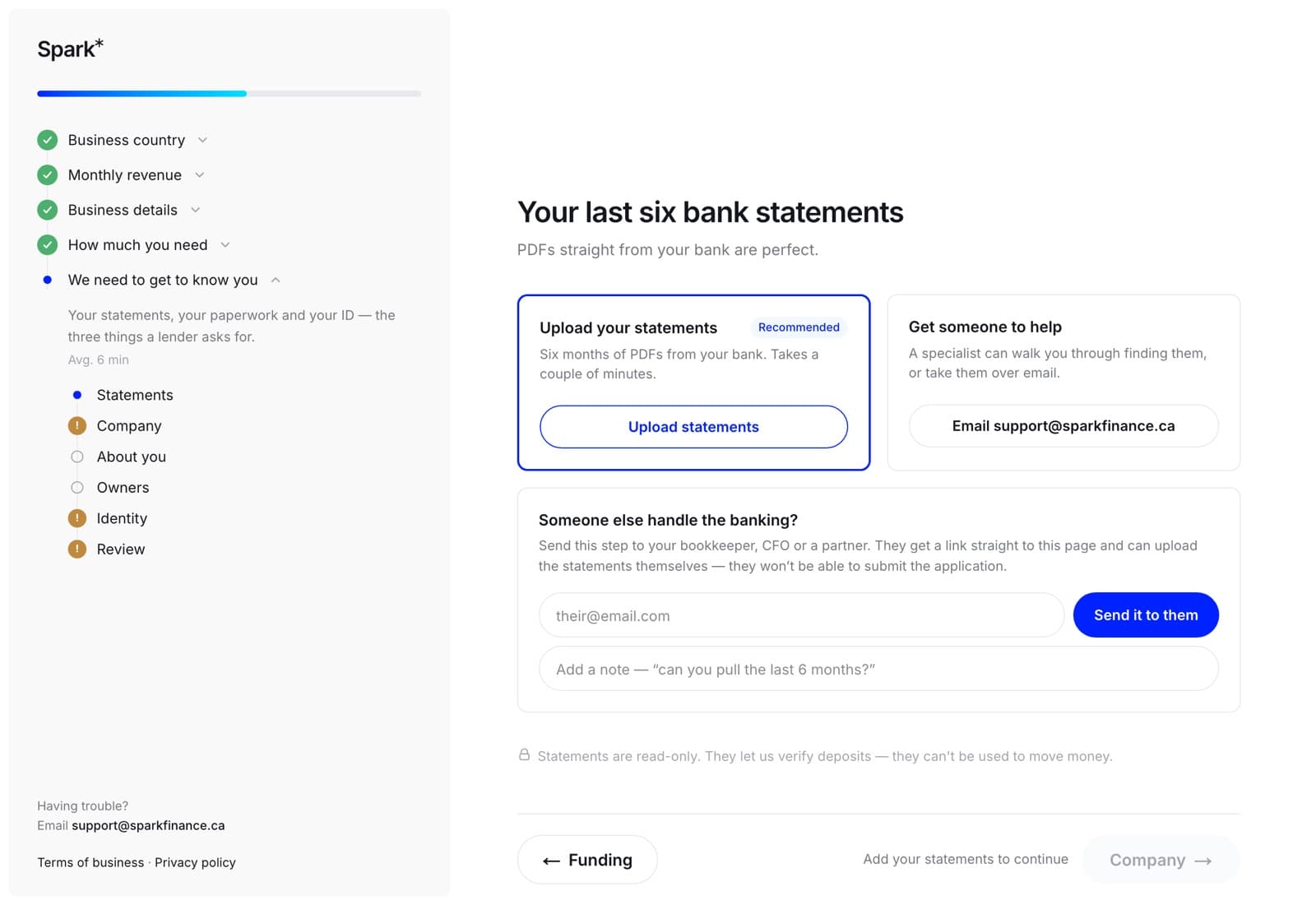
The statements step offers two routes side by side: upload them yourself, or get someone to help. Uploading opens a drawer, because the requirements matter more than the file picker and deserve the room.
Drag the files in or click to choose. Several at once is normal and expected.
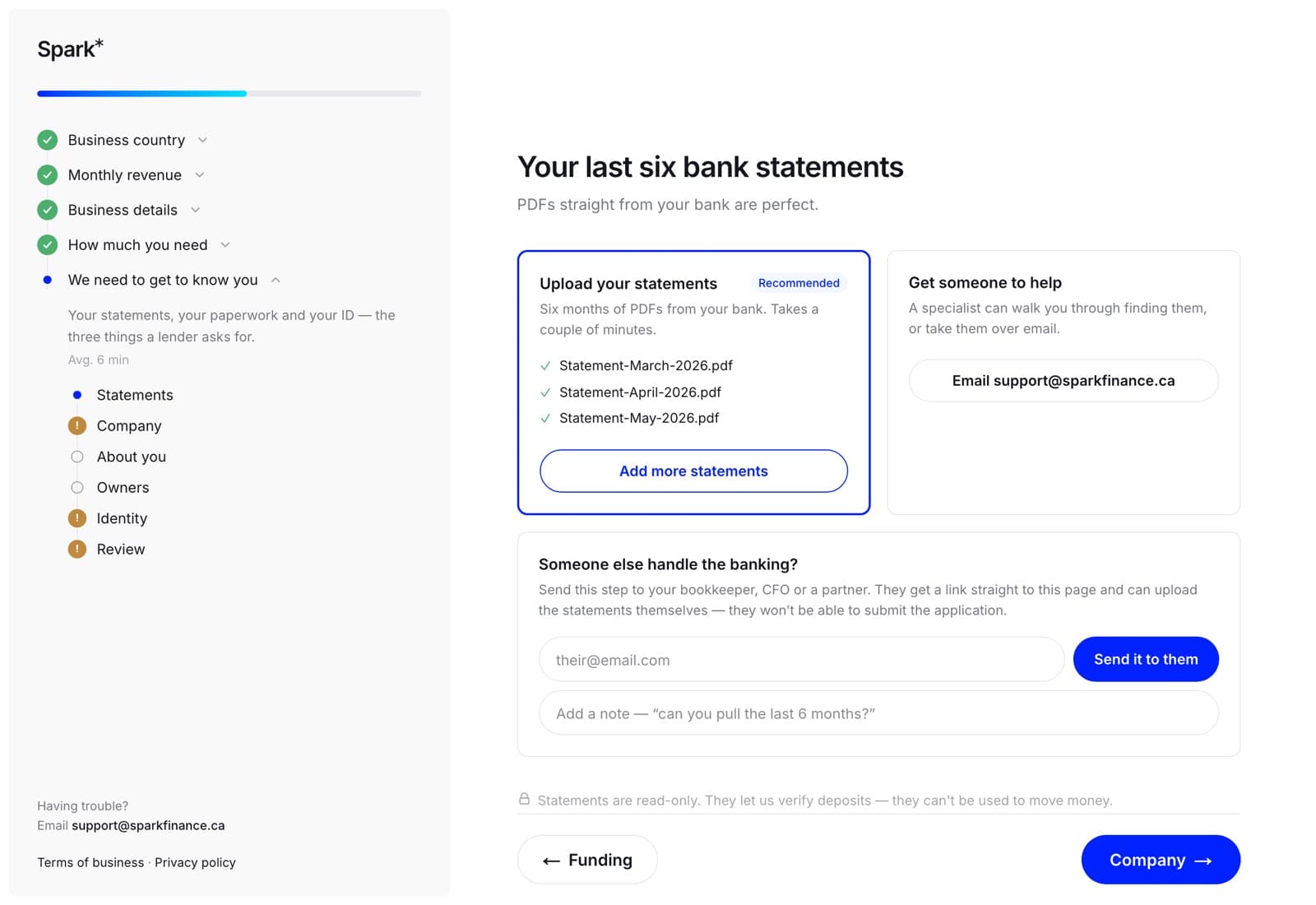
Once they are attached they are listed by filename, and the step lets you past. Until then the Next button stays where it is and goes grey — statements are one of the three steps the wizard will not let you walk past.
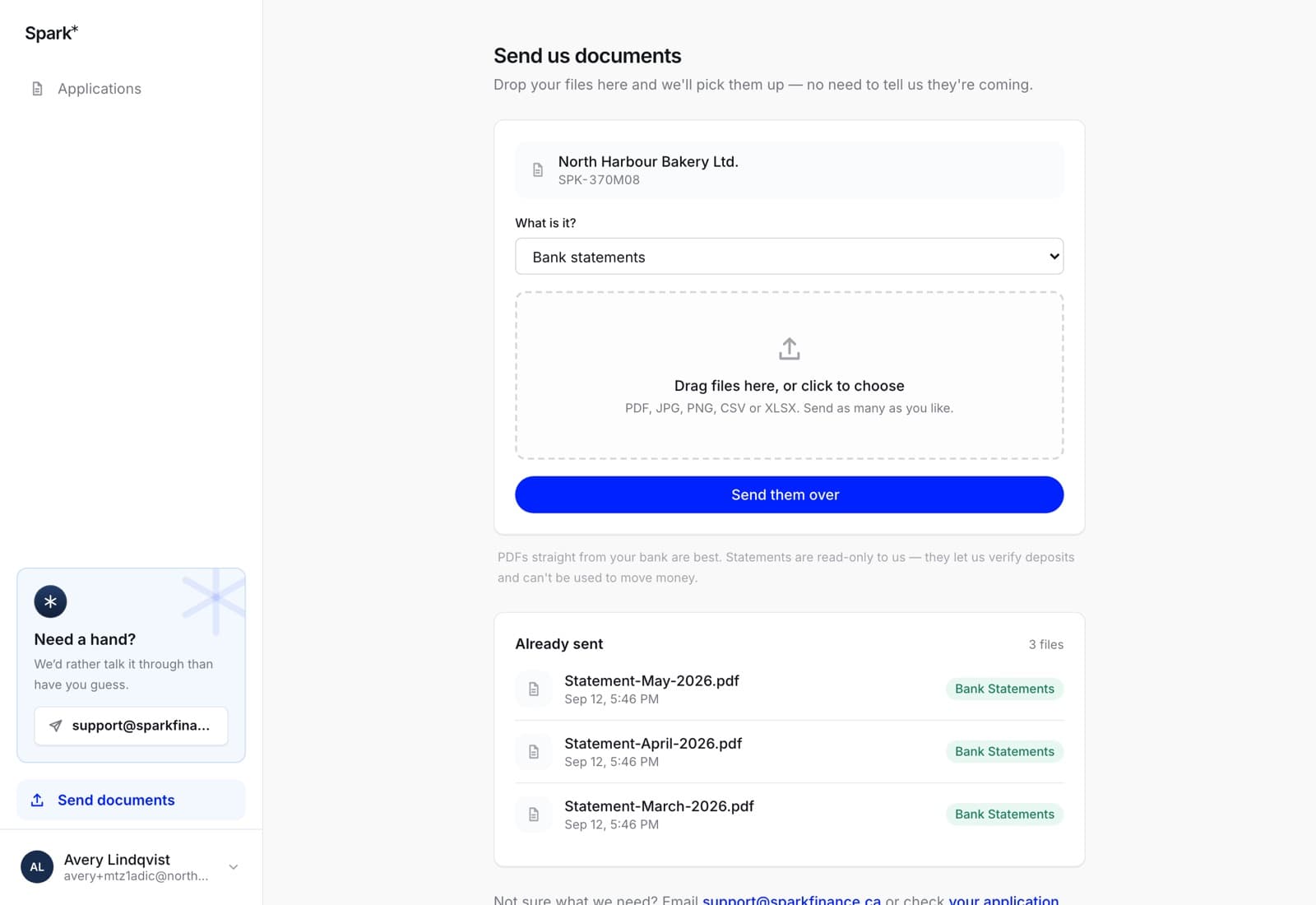
You can also send them outside the wizard, from Send documents in the sidebar. That screen files what you send against your most relevant open application and tells you which one at the top of the box — it does not ask you to choose.
In the app
The Documents tab does the same job with one thing the website does not have: you choose which application the file belongs to, including Not sure yet if you have not started one.
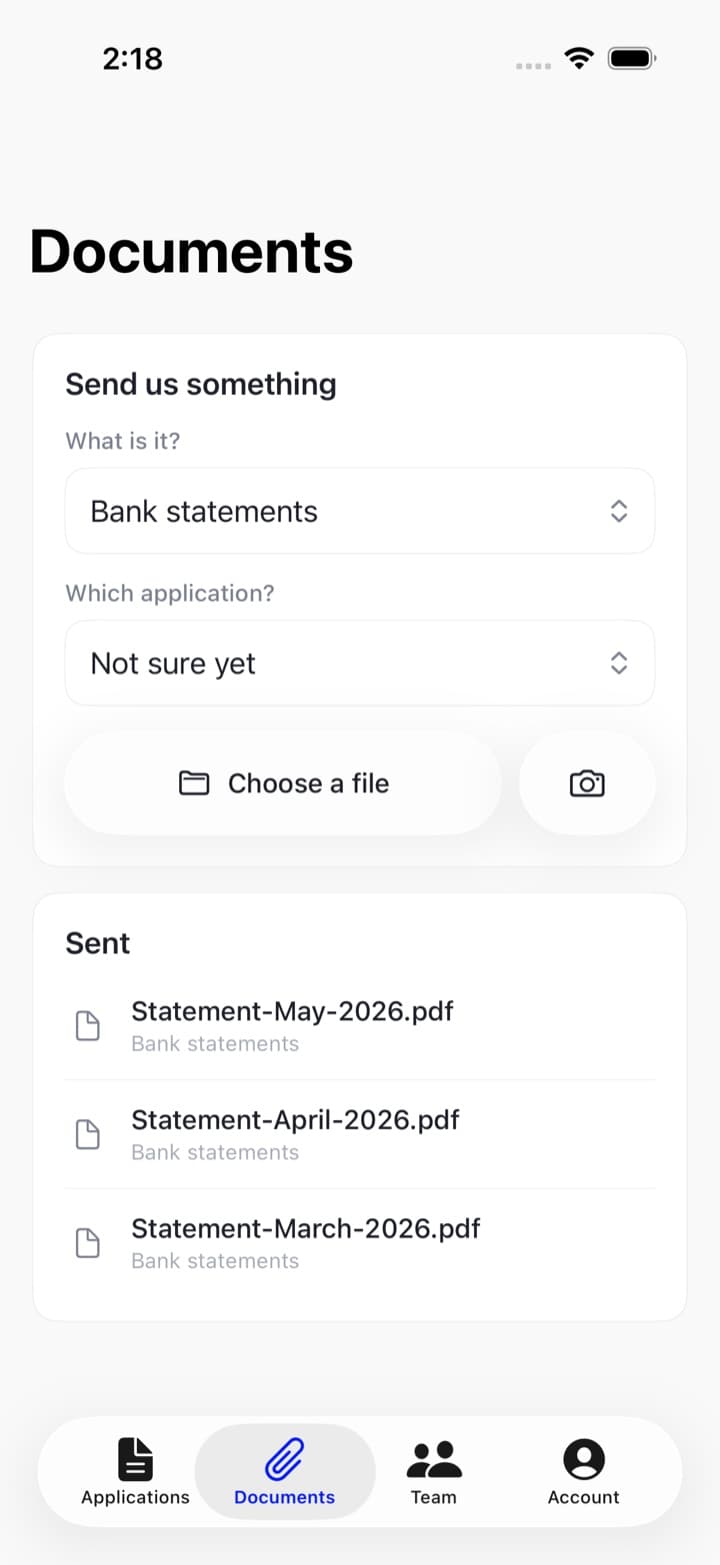
Choose a file opens Files. The button beside it opens your photo library — so if you are photographing a paper statement, take the picture in the Camera app first and then pick it here.
Inside an application, the statements step has the same two buttons under Add your statements, and lists what it already has.
Common refusals
- The file is not a PDF on the statements step. The web box only offers PDFs there. Download the statement from the bank rather than sending an image of it.
- Too large. Ten megabytes per file. A six-month bundle scanned at full resolution can exceed it — send the months as separate files, which is how the bank produces them anyway.
- Sent, but sent back. Almost always rule 2 or rule 3: a gap in the middle, or nothing recent enough. Check the dates before you upload rather than after.