Resetting your password
How the reset link works, how long it lasts, and what the new password has to be.
2 min read
How it works
- On the sign-in page, Forgot your password?
- Type the email you signed up with and ask for the link.
- Open the email and follow the link.
- Set a new password, twice. It takes you back to the sign-in page to sign in with the new one.
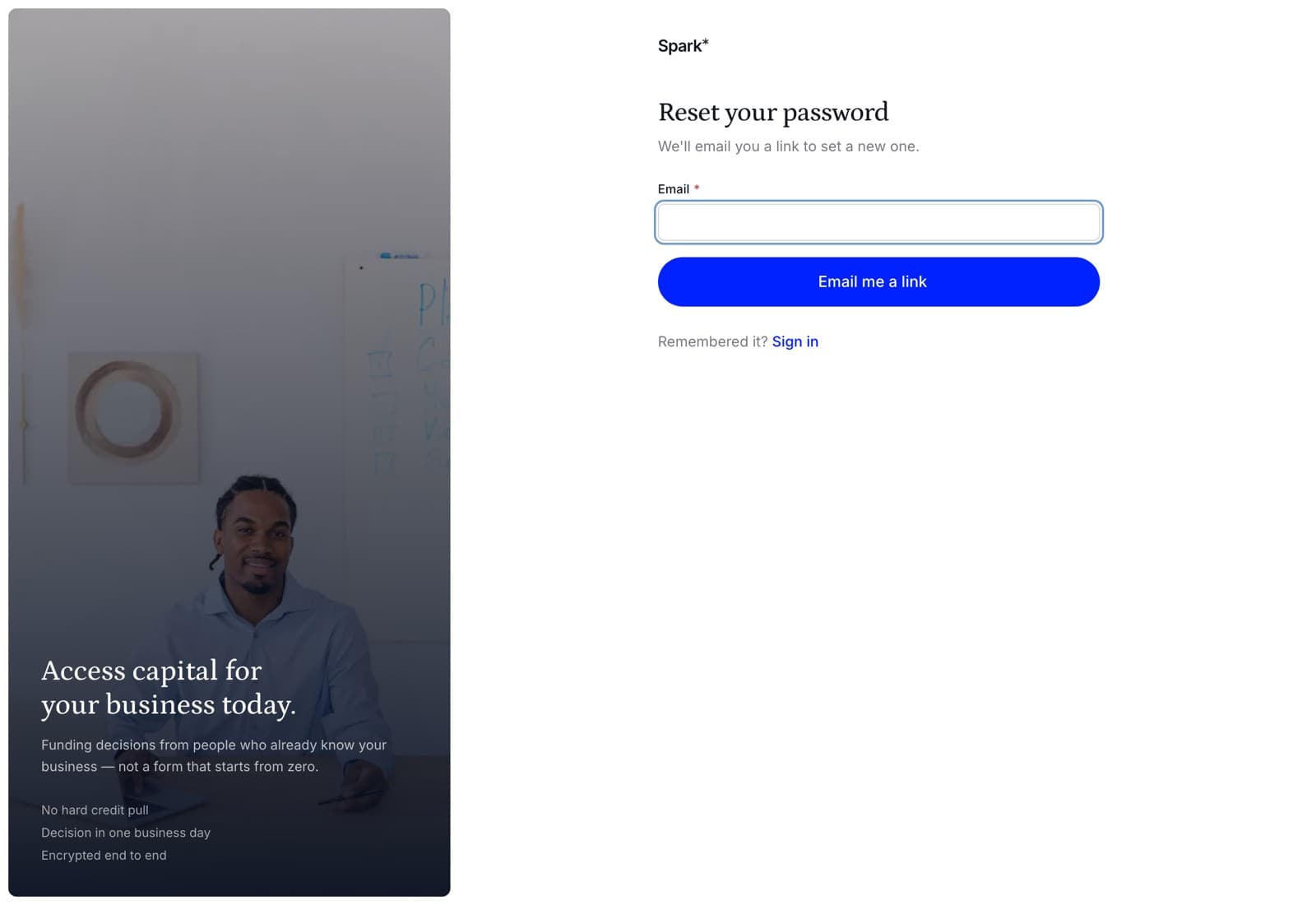
The page will tell you that if the address has an account, a link is on its way — it says "if" on purpose. Confirming which addresses have accounts and which do not is an answer we owe you and nobody else.
The link
It expires in an hour, and it works once. Ask for another whenever you need one — there is no limit, and an unused link dies on its own an hour after it was sent.
If you follow a stale link the page says so and offers you a fresh one rather than leaving you looking at a form that will not work.
The new password
The same five rules as signing up:
- at least 8 characters
- an uppercase letter
- a lowercase letter
- a number
- a special character
They are enforced here exactly as they are at sign-up — a rule that applies on one screen and not the other is not a rule. The two boxes have to match, and if something is wrong the page says which: too short, does not meet the requirements, or the two do not match.
If the email never arrives
- Give it a minute, then check the spam folder.
- Make sure you are asking for the address you actually signed up with — often a personal address when the account was made with a work one, or the other way round.
- Still nothing? Call us. We can tell you which address the account uses.
In the app
Forgotten your password? on the sign-in screen opens the same thing, and the link in the email finishes the job in the app rather than handing you to a browser — whoever follows it cannot sign in yet, so finishing anywhere else would leave you setting a password somewhere other than the app you were trying to use.