Inviting someone to help
How to get your bookkeeper, accountant or partner onto the application without handing over your password.
2 min read
A business applies, not a person. The bookkeeper has the banking login; the partner signs. So an application belongs to your business, and anybody you add can work on it — with their own account, their own password, and their own name against what they did.
Inviting someone
On the web: Team — from your name at the bottom of the sidebar — then Invite someone.
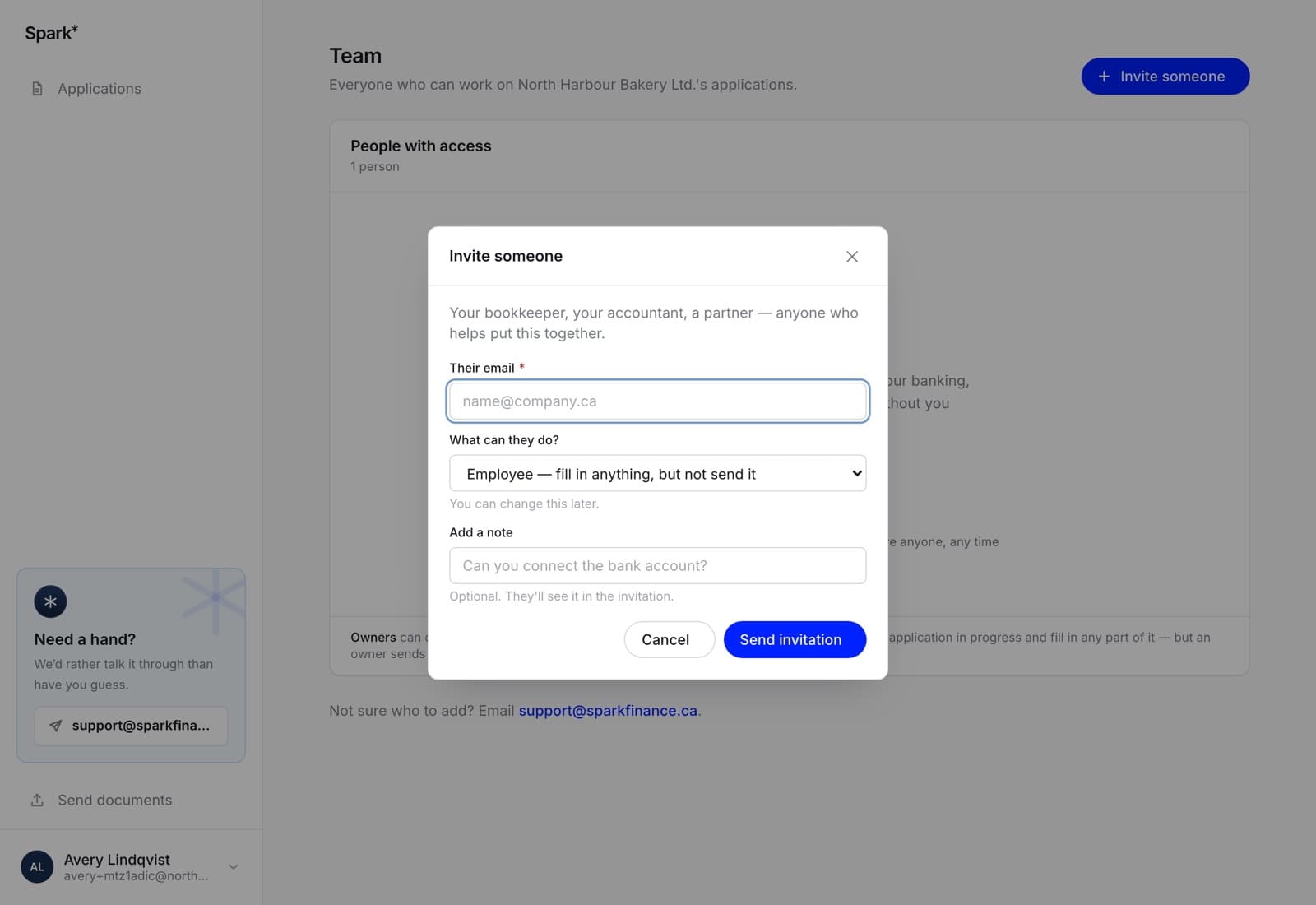
Three fields:
- Their email. Where the invitation goes.
- What they can do. Employee or owner — see owners and employees.
- A note, optional. They see it in the invitation, and it is the difference between an unexplained email from a lender and "can you connect the bank account?".
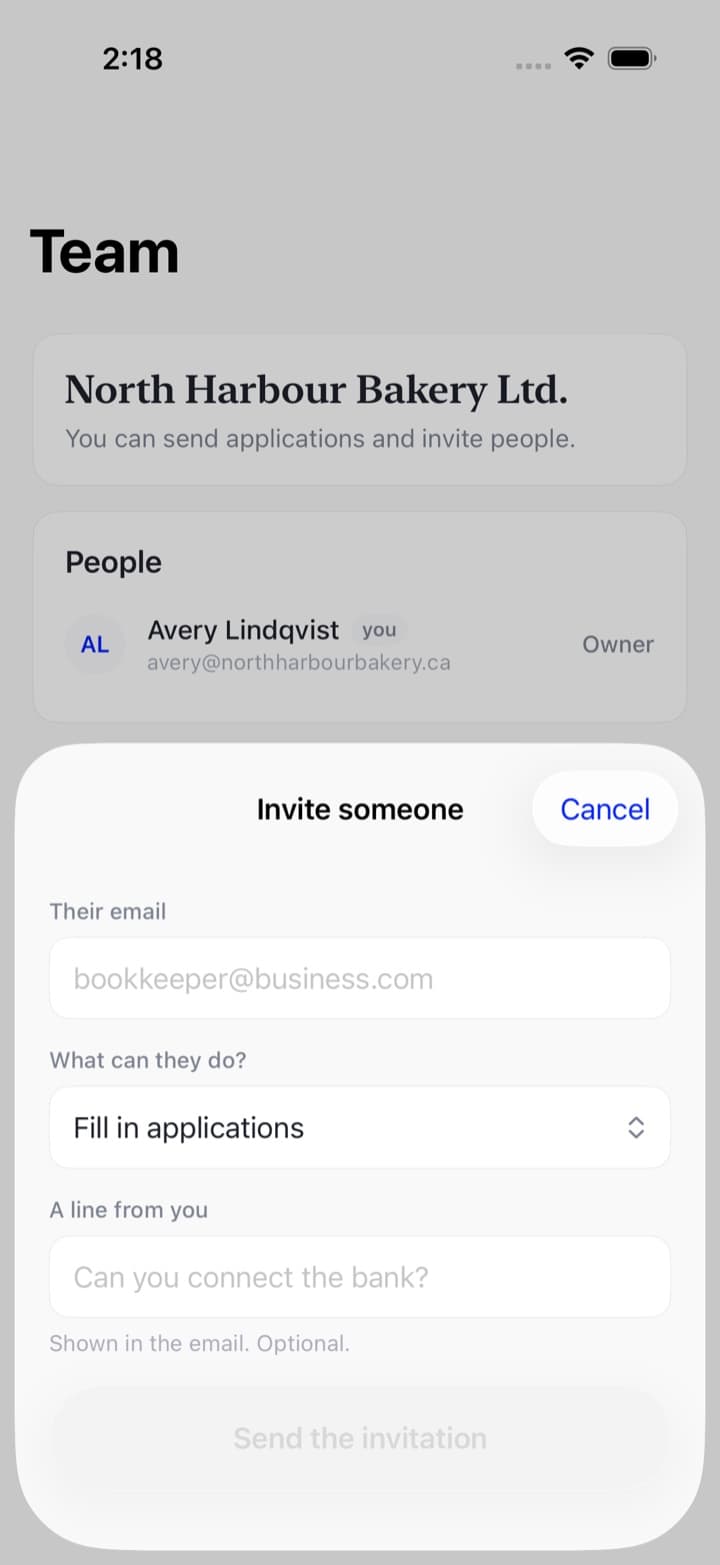
In the app: the Team tab, then Invite someone. The same three fields, and the same rules — the app asks our server who may do what rather than deciding for itself.
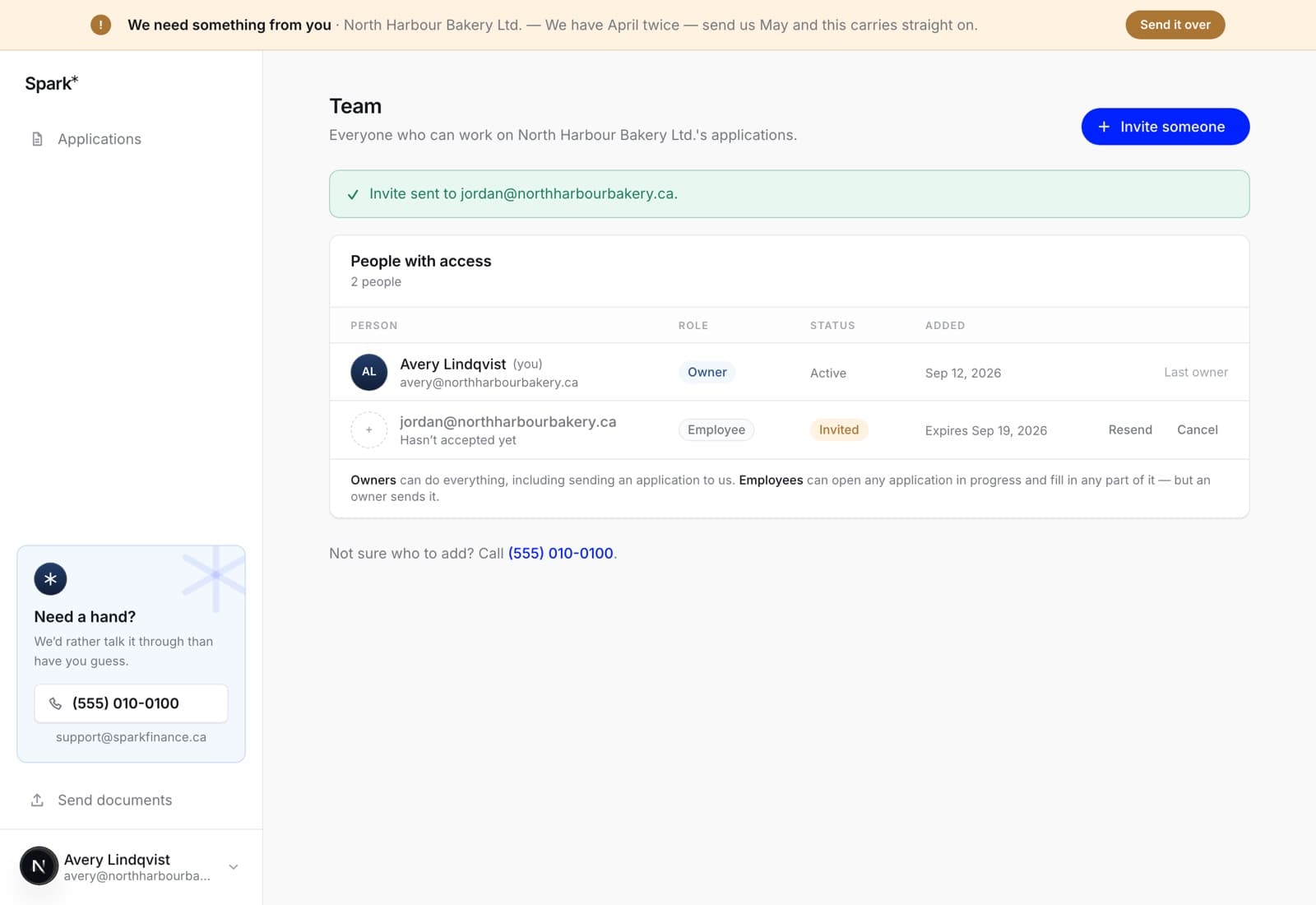
Outstanding invitations are listed under Invited with the date they expire, and Cancel beside each one.
What happens next
They get an email with a link. Following it, they make their own account — or sign in, if they already have one — and land on your business's applications.
- An invitation lasts seven days. The Team screen shows the date each one expires.
- Resend and Cancel sit next to every outstanding invitation. Resend issues a fresh link and kills the old one; cancel stops it working at all.
- One live invitation per address. Inviting the same person again refreshes the existing invitation rather than leaving two working links to your account.
What they will see, and the things that go wrong at their end, are covered in someone invited you to help — worth sending them if they get stuck.
Who to invite
Whoever holds the information you would otherwise be chasing:
- the bookkeeper with the banking login, for the bank statements
- the accountant with the incorporation paperwork
- a partner or co-owner who has to sign
Only an owner can invite
If you are on a team as an employee, the invite button is not yours. Ask an owner.
Removing someone
On the Team screen, next to their name. A team must always keep at least one owner, so the last one cannot be removed or demoted — an application nobody can send is worse than an awkward conversation.